
Petitions and Offenses is ready to move into the modern YouthCenter application! The new Petitions will go live on 9/29 alongside Court Cases, Pickup Orders, and Register of Action, with an updated interface and several improvements to the way you work with petition and offense information. This is the final piece of Case Manager that was still running in the old YouthCenter.
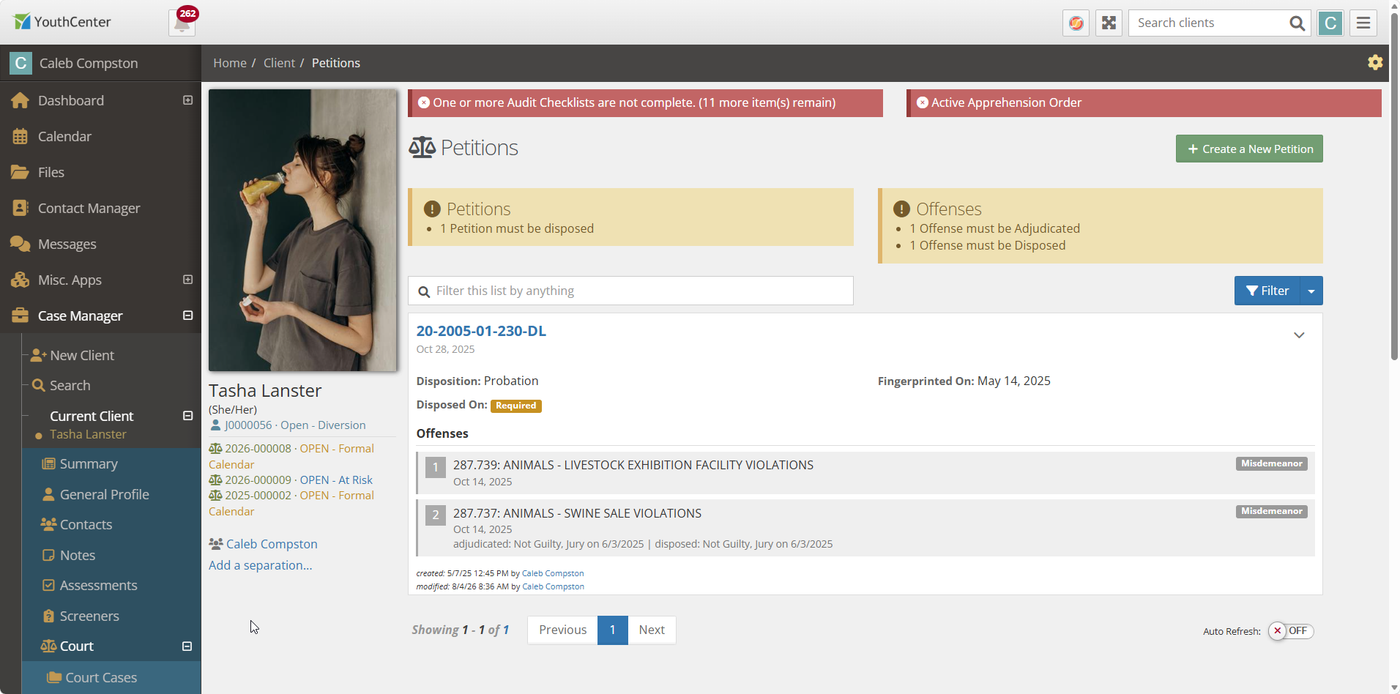
What’s Changing
The legacy Petitions page, which may appear in your sidebar as “Offenses (Old YouthCenter),” has been recreated in the new application. Your existing petition and offense data is already available there. You don’t need to re-enter anything, and you can continue using the old and new pages during the transition without creating duplicate or conflicting data.
The new Petitions app also includes several improvements:
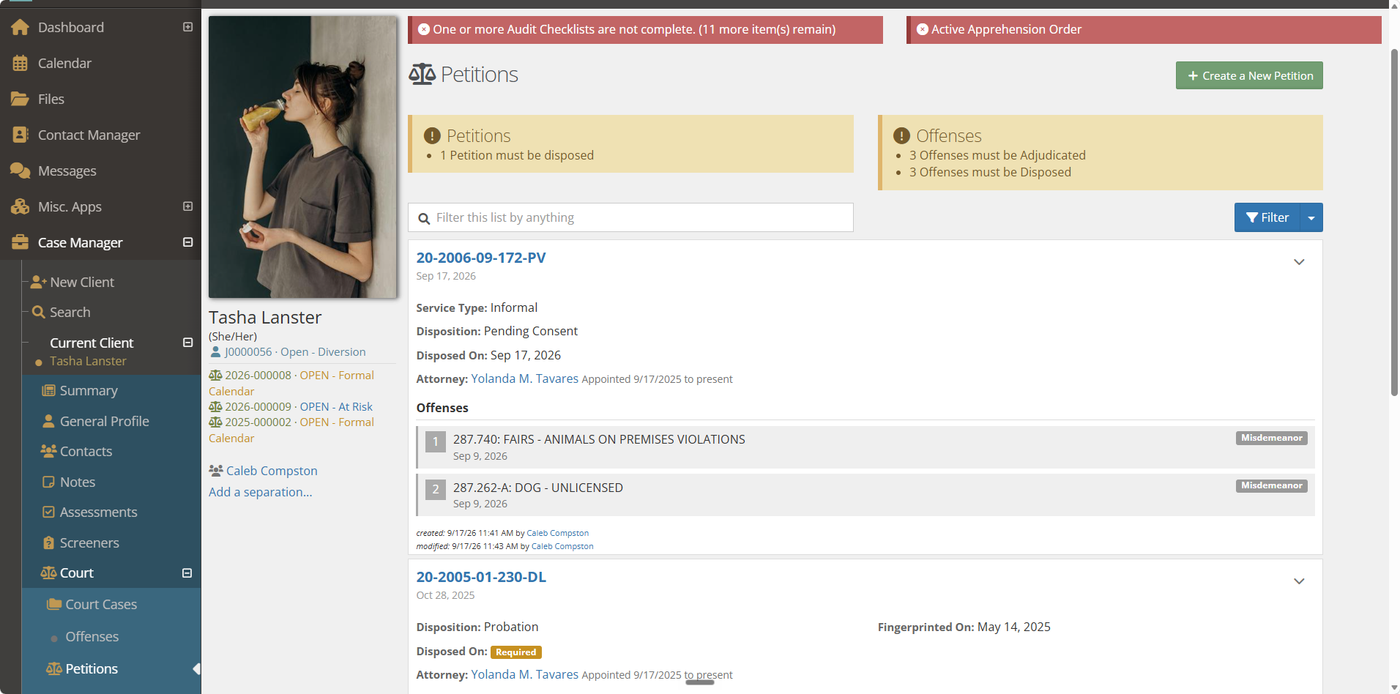
- A cleaner list view that highlights petitions and offenses that may need attention, including missing authorization, fingerprints, consent dates, or outstanding adjudication or disposition.
- Faster filtering across petition numbers, dispositions, charges, pleas, and attorney names from a single search box.
- Consistent tools across YouthCenter. Flagging, Tagging, Sharing, and Daily Log support now work with petitions just as they do in other areas of the application.
- Improved audit tracking that logs changes made to petitions more reliably.
How to Use the New Petitions App
Finding a client’s petitions
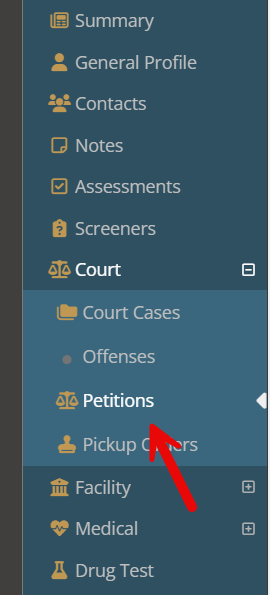
Open a client’s record and select Petitions under Case Manager. Each petition appears in its own panel, along with Attachment and Comment counts and information about who last updated it. Petitions or Offenses that need attention are highlighted at the top of the list.
Creating a petition
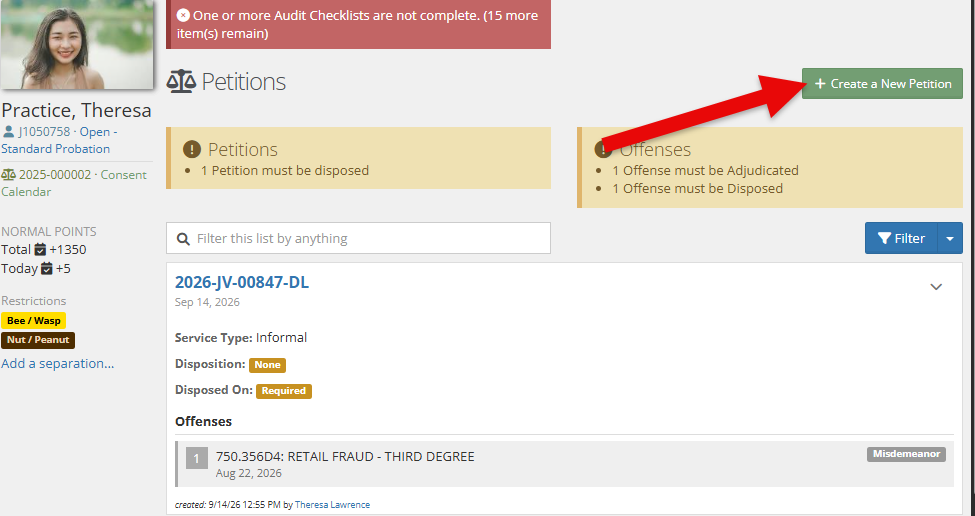
Click “Create a New Petition.” You’ll need to select a court case and enter a received date, petition number, and at least one offense with a count, offense date, and charge.
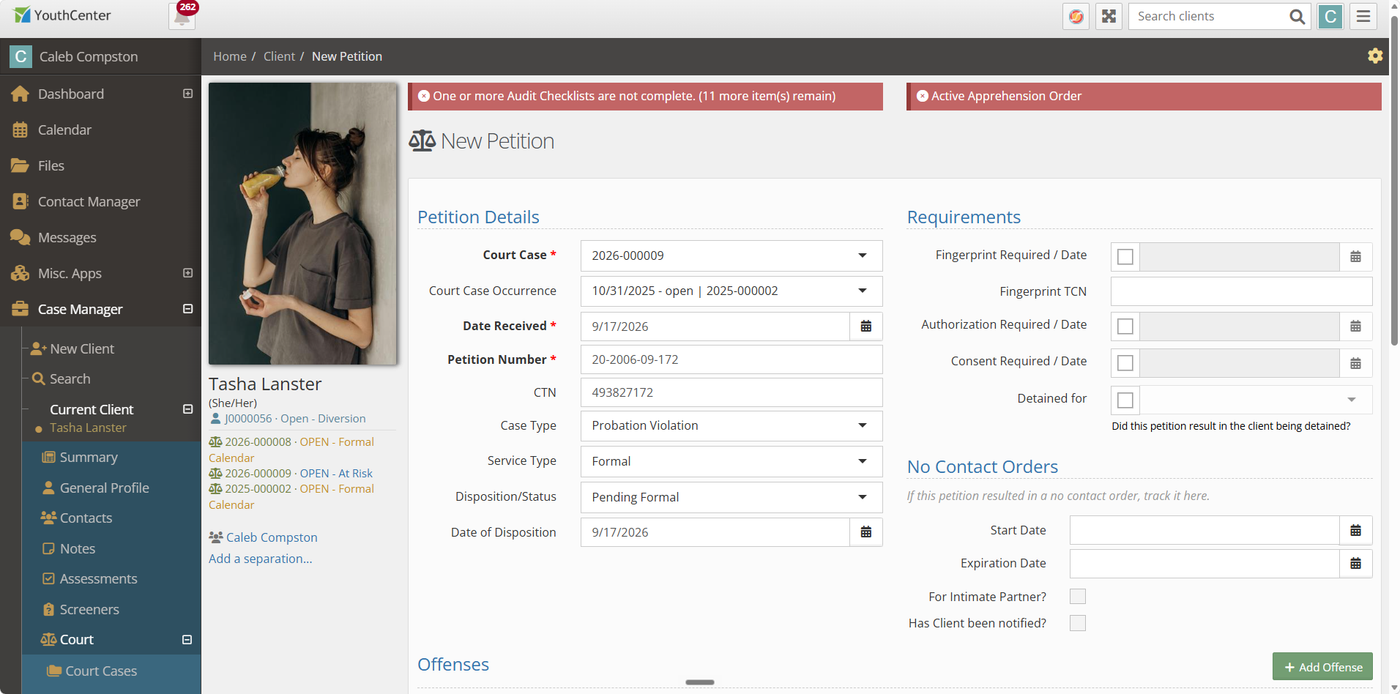
When you select a charge, YouthCenter can automatically identify items such as felony charges, drug or alcohol violations, and whether DNA collection is required. These values can still be changed when needed.
Viewing and editing
Select a petition from the list to view its details, including offenses, associated attorney appointments, and available actions. Depending on your permissions, you can edit or delete the petition and open an attorney’s contact record directly.
Reopening a petition: “Refer to Formal” and “Return from Transfer”
If a petition was resolved informally through Consent Calendar, or if a case was transferred to another county and later returned, the appropriate action will appear on the petition or offense.
Selecting the action creates a new petition and carries the open offenses forward. The original petition remains unchanged for historical purposes, and YouthCenter links the two records together.
Amending an offense
When an offense’s outcome allows for an amendment, such as a felony being reduced to a misdemeanor by the court, an “Amend Offense” option becomes available.
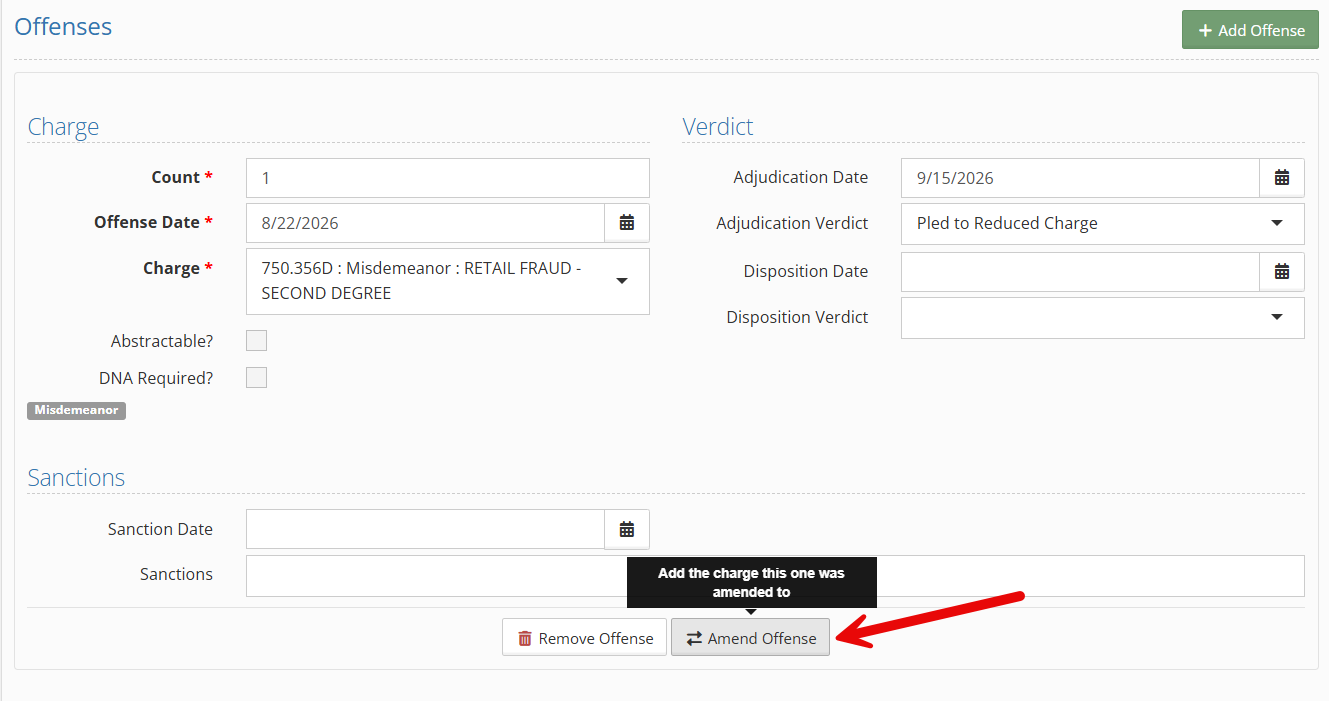
The amendment creates a new offense entry with the updated charge while keeping the original offense in the case history.
Changing a case type
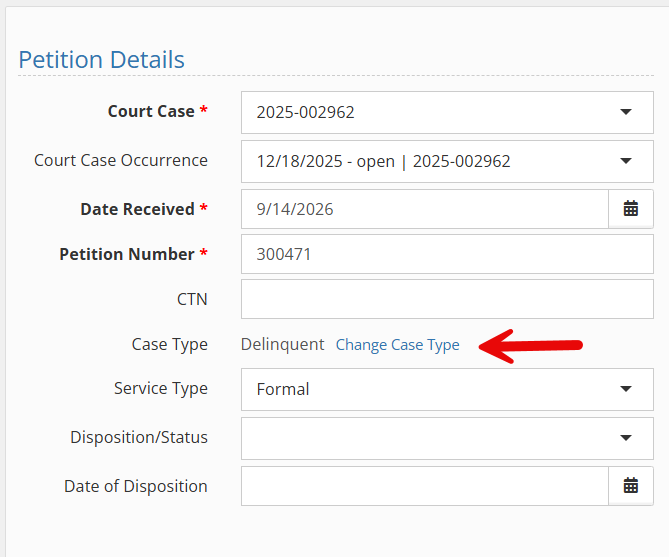
If a case needs to move from one case type to another, such as from Designated to Delinquent, the Change Case Type action creates a new petition under the new case type and moves the applicable offenses to it. The original petition remains available for historical and reporting purposes.
Deleting a petition
Deleting a petition also removes its offenses, related attorney appointments, and Register of Action events. YouthCenter will ask you to confirm the deletion before it is completed because the action cannot be undone.
Permissions
Your existing permissions will continue to work with the new Petitions app. The permissions that previously controlled legacy Offenses now apply to the new Petitions screens, so there’s nothing you need to reassign.
You may notice that some permission names have changed. “Offenses” is now labeled “Petitions,” and “Offense: View” and “Offense: Edit” are now “Petition: View” and “Petition: Edit.”
There is also one new permission to review: Petition: Delete. The legacy Offenses page did not have an equivalent permission. To avoid disrupting existing workflows, we’ve automatically granted Petition: Delete to groups that already have permission to edit petitions.
If your site would prefer to limit deletion to a smaller group of users, an administrator can update that permission in Group Permissions.
Documentation Updated
For more step-by-step instructions, visit our Petitions documentation.
Legacy Systems Retiring in Early November
The legacy Reports and legacy Petitions pages will be retired in early November.
If you have questions about the transition or encounter an issue with the new Petitions app, please contact our support team.
Order of field updates for placements
Several suggestions have come in to reorder the selection of program and physical placements to move the placements selection to the top of the intake form. Based on that feedback we’ve adjusted both physical and program placements. Thanks to those who suggested the change!