
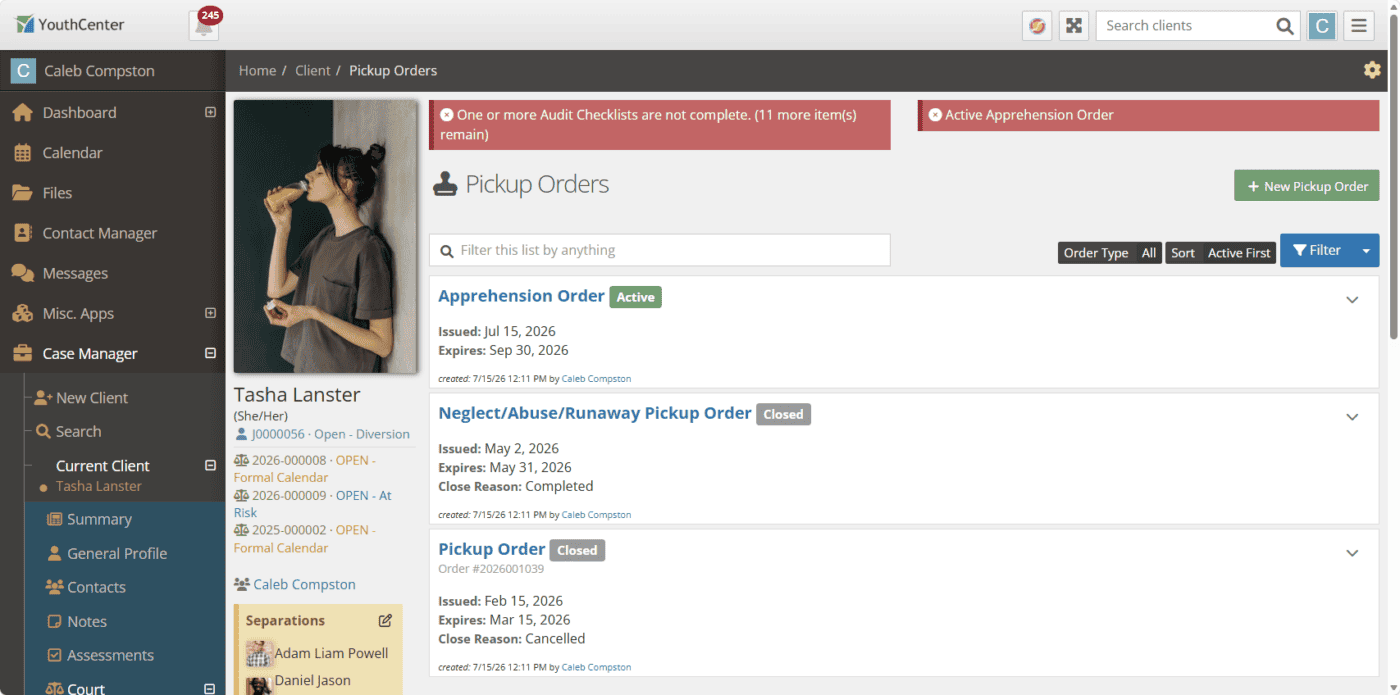
As part of our hotfix on 7/14, we introduced a new sub-application called Pickup Orders. Pickup Orders gives your team a clearer, more secure way to track court-ordered pickups on a client’s record. This new feature includes a heads-up banner, better reporting, and a full history of changes, all built to match the rest of YouthCenter. The Pickup Orders sub-application allows you to quickly track orders like Apprehension Orders, Neglect/Abuse/Runaway Pickup Orders, and Bench Warrants.

Permissions your organization needs to turn on
Access to Pickup Orders is controlled by administrators in the user permissions.
| Permission | What it lets someone do |
|---|---|
| Pickup Order (Sub-application) | Who can see the menu link |
| Pickup Order: View | See the list of Pickup Orders and open individual orders. Without this, a staff member won’t see the menu link, the list, or the alert banner mentioned below. |
| Pickup Order: Edit | Add new Pickup Orders and make changes to existing ones. |
| Pickup Order: Delete | Remove a Pickup Order. |
Using the Pickup Orders
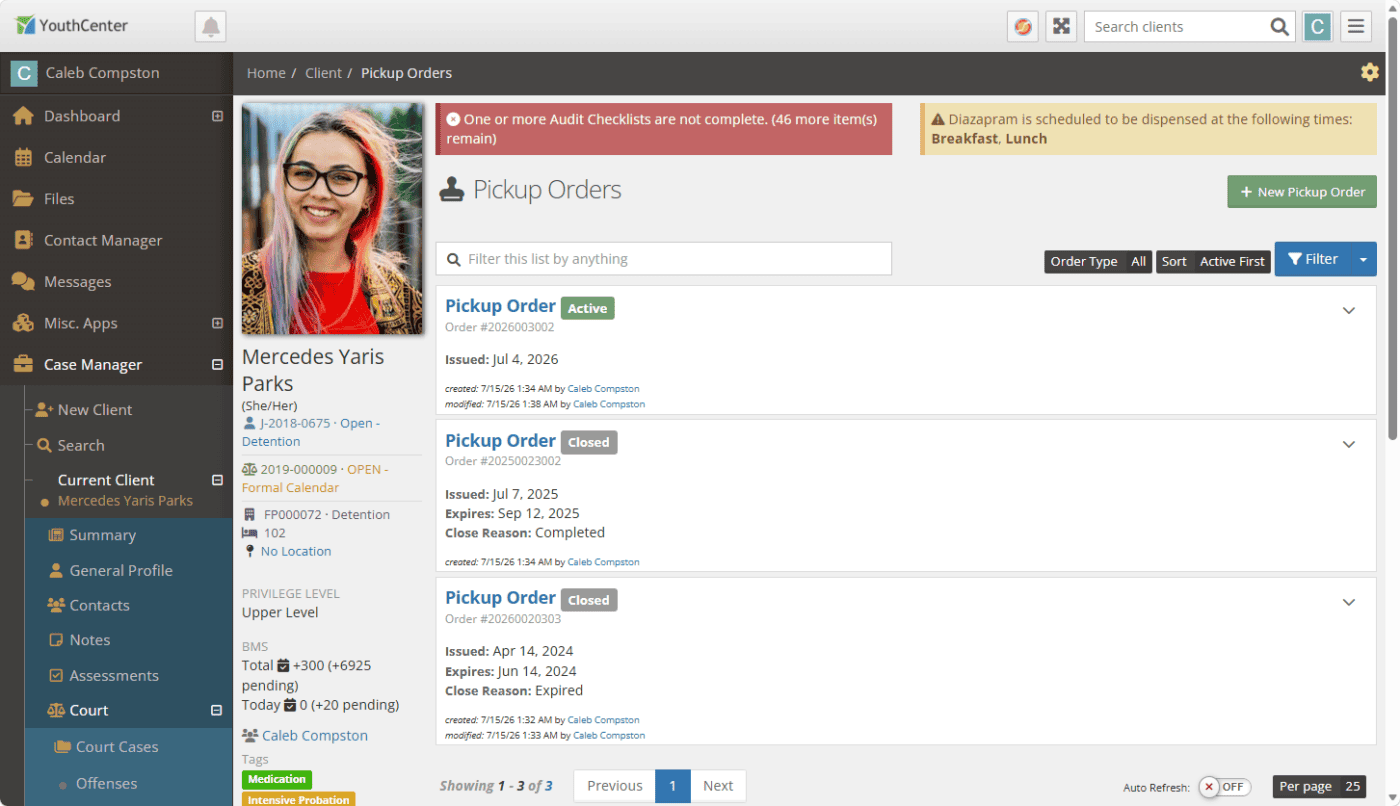
Open a client’s record and click Pickup Orders to see every order for that client, active and closed, with active orders listed first.
Each entry shows:
- Order Type
- Order Number (if one was entered)
- Issued Date
- Expiration Date
- Status
You can sort by Issued Date or Expiration Date, and filter by type. View, Edit, and Delete buttons show up next to each order, but only for staff who have that permission.
If a client doesn’t have any Pickup Orders yet, you’ll see a “Nothing here yet…” message. If you’re also able to add orders, you’ll see a reminder pointing you to the + New Pickup Order button.
Using the Pickup Orders
Click + New Pickup Order to open the form (only visible if you have Edit access). It looks and works like other forms you already use in YouthCenter.
Fields on the form:
- Order Type (always required)
- Issue Date (always required)
- Court Case
- Court Case Occurrences
- Order Number
- Issuing Judge
- Expiration Date
- Close Reason
- Notes
Order Type and Issue Date always show up and are always required. Your organization’s administrator can choose whether the other fields appear at all, and whether they’re required, using the built-in form editor in Form Admin screen. So if your organization doesn’t track an Issuing Judge, for instance, an admin can hide that field for everyone.

A couple of things to know:
- Save & Add New lets you log several orders in a row without going back to the list each time.
- If you set an Expiration Date in the past while the order is still marked Active, YouthCenter will give you a heads-up, but it won’t stop you from saving. Sometimes an order needs to be closed out after the fact, and the system trusts you to make that call.
Viewing and deleting a Pickup Order
The view page shows all the order’s details. Edit and Delete buttons appear at the top of the page, just like on other view pages in YouthCenter, but only for staff who have that permission.
You can delete from either the list or the view page. Either way, you’ll always be asked to confirm first:
“Are you sure you want to delete this Pickup Order? Deleting an item cannot be undone.”

The alert banner
When a Pickup Order is active, a red banner can appear on the client’s record letting staff know right away:
Active Pickup Order
Clicking the banner takes you straight to that order’s details.
The banner only shows up when all three of these are true:
- The order’s type is set up to show alerts (your administrator controls this — see below).
- The order is marked Active.
- The Expiration Date hasn’t arrived yet (an order expiring today, or with no expiration date at all, won’t show a banner).
The banner updates automatically, it disappears on its own once an order is closed, expires, or its type is switched to not show alerts. And like everything else here, only staff with at least View access will see it.

Setting up order types and close reasons
Your administrator manages two dropdown lists for this feature, via the Picklist Admin in YouthCenter:
- Pickup Order Type: the list of order types staff can choose from (e.g., “Pickup Order,” plus any others your organization wants to track). Each type has its own on/off switch for whether it triggers the alert banner.
- Close Reason: the list of reasons an order can be marked closed.
A default “Pickup Order” type is already set up with alerts turned on, so the feature works right away without any setup. Agencies that want to track more than one type of order can add to the list at any time.

Reporting
If your organization builds custom reports, there’s a new report source called Client: Pickup Orders, with all the Pickup Order details (order number, type, issuing judge, dates, active status, notes) plus related court case information.
The old Court Orders report source has been retired and is no longer available to use. If you have existing reports built on it, they’ll need to be rebuilt using the new Client: Pickup Orders source instead.
A record of every change
Every time a Pickup Order is added, changed, or deleted, it’s recorded in the client’s audit history, including who made the change, when, and what was different before and after. Nothing about this is new to learn; it works exactly like auditing does elsewhere in YouthCenter.

Providing Feedback
Pickup orders were created in consultation with several courts. If you have feedback on the new feature or ideas for future features, please reach out to us at Contact YouthCenter Today. We look forward to hearing from you.